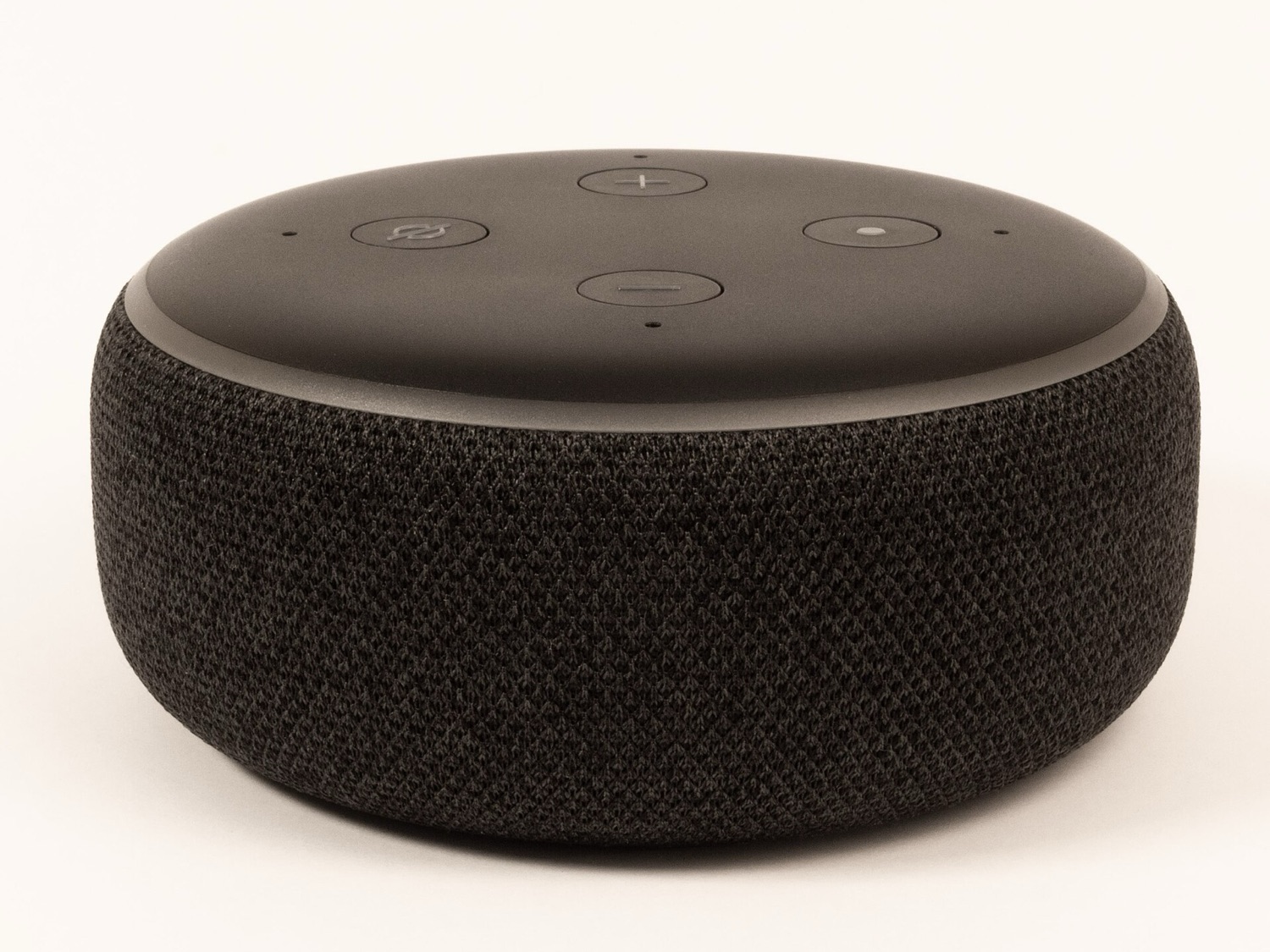
Smart speakers and voice assistants such as Amazon's Alexa, Google's assistant and Apple's Siri found their way into many classrooms as a hands-free helper: setting timers, playing music, answering a quick fact check. Used thoughtfully, they can save a few trips to the laptop. Used carelessly, they raise real privacy and behaviour questions. This guide is independent and not tied to any product.
How voice technology works
Conceptually, all voice assistants work the same way. The device listens for a wake word or a button press. When activated, it records the request and sends it to the company's servers, where software turns speech into text, works out what was asked and sends back a response that the device speaks aloud. Most of the processing happens in the cloud, not on the device.
When an assistant is waiting for its wake word it is in a standby mode, and most smart speakers show a light when they are actively listening and sending audio. Many devices can also play a short tone at the start and end of a request, which is a helpful extra signal in a classroom.
Useful classroom tasks
Classroom management
Timers, countdowns, reminders ("remind me at 10:15 to go to the library"), and music cues for transitions.
Quick facts and conversions
Spelling a word, converting units, checking a date. A good chance to discuss whether the answer is right.
Brain breaks and calm
Instrumental music, nature sounds or a guided breathing track, with no screen to watch.
Listening practice
Audio-only activities ask students to listen carefully, a skill that screens rarely build.
Ways to activate it
Schools have different privacy requirements, so voice assistants are set up in different ways. From most to least hands-free:
- Wake word on standby: the device responds when someone says its name. Convenient, but anyone in the room can trigger it, and it can mishear ordinary conversation.
- Muted until needed: the microphone is switched off with the physical mute button (usually shown by a red light) and turned on only when the teacher needs it.
- Push-to-talk: an assistant app on a tablet or phone that only listens when a button is pressed, the same way voice search works on most devices. Some speakers also support a remote with a press-and-hold button.
Limits to know about
- Children's voices are often misheard, which can frustrate students.
- Answers can be wrong. Newer assistants are adding generative AI features that make answers more fluent, but fluent is not the same as accurate.
- Upsells and ads. Some assistants promote services or suggest purchases. Turn off voice purchasing.
- Unexpected content. Enable explicit-content filters for music and avoid open-ended requests in front of the class.
- Privacy. Voice requests are processed and may be stored by the provider. See our smart speaker privacy checklist.
Class rules, agreed together
Teachers, students, administrators and parents can agree the rules for voice technology together, so it is a safe experience. A simple class agreement for younger students:
- Only the teacher (or today's helper) talks to the device.
- We never say our full names, addresses or other private information to it.
- If it says something strange, we tell the teacher.
- When it is muted, it stays muted.
A digital citizenship mini-lesson
Use the device as a teaching object. Ask: How do you think it knows what we said? Where does our voice go? Can it make mistakes? Who might hear the recording? Students learn that "smart" devices are computers run by companies, that they can be wrong and that privacy is something we choose to protect. That lesson outlasts any particular gadget.
Speaker choice: in a large room, a device with a bigger speaker, or a small one connected to classroom speakers by cable or Bluetooth, is easier for everyone to hear. Volume matters more than features.